
This guide will show step-by-step instructions for setting up email on Outlook 2007 for Windows. While it can be used for other versions of Outlook, some screens and steps might vary.
Adding a new account:
- Select the 'File' menu.
- Select Info.
- Click the Add Account button.
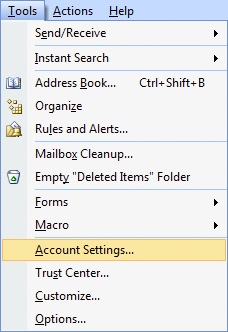
- Choose to Manually configure server settings.

- Click Next.
- Choose Internet E-Mail.
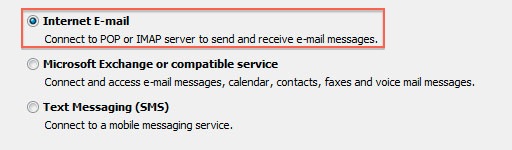
- Click Next.
Account Settings
-
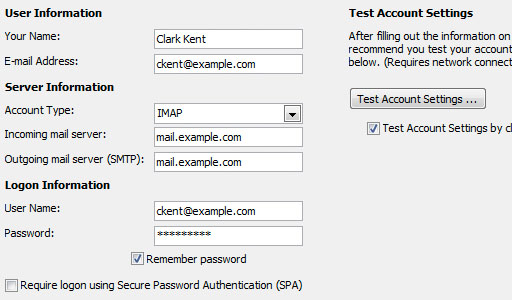
- Enter your Name as you want it to appear on your outbound email messages.
- Enter your email address.
- Enter mail.yourdomain.co.za as your Incoming Mail Server. You would not enter yourdomain.co.za but your own domain name.
- The Outgoing Mail Server is mail.example.com. You would not enter yourdomain.co.za but your own domain name.
- Enter your email address for the User Name.
- Enter your email password.
More Settings
- Click the More Settings button.
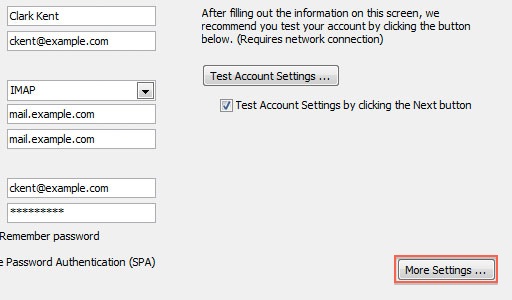
- Click the Outgoing Server tab.
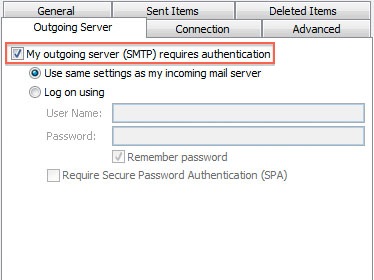
- Check the "My outgoing server (SMTP) requires authentication" checkbox.
- Ensure you are using the same settings as your incoming mail server.
- Click the Advanced tab.
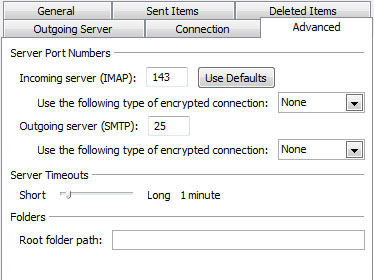
- If you are using POP3 this port should be 110 else if using IMAP it must be 143
- If you are using POP3, with phones and tabs, you may choose when messages are removed from the server (set this to 7 days, NOTE - mailboxes are 500Mb and when full, mails stop being received until the mailbox is cleaned out.)
- If you are using SMTP the port is set automatically to 25 please change this to port 587(STARTTLS)/465(SSL/TLS)
Click the OK button.
Testing Settings
- While on the E-mail Accounts screen, click the Test Account Settings button.
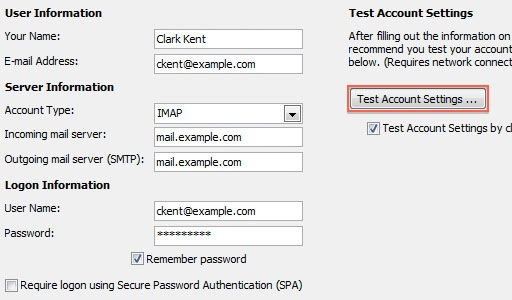
- This will both check your settings and send a test email to yourself to confirm that everything is working. If you receive any errors, please check your configuration.
- Click the Close button on the Test Account Settings window.
- Click Next on the E-mail Accounts window.
- Click the Finish button.
Outlook 2007 is now correctly configured to send and receive emails.


