
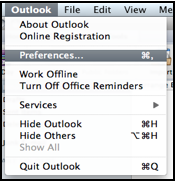
- Open Outlook for Mac 2011. From the Outlook drop-down menu in the top bar, select Preferences.
- On the Outlook Preferences menu, under the Personal Settings header, click Accounts.
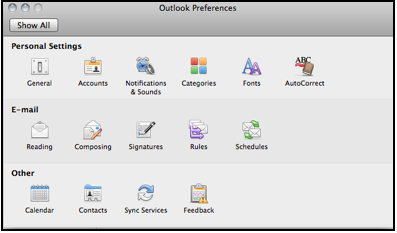
- On the Accounts screen, select E-mail Account.
- Enter your full email address (e.g., myname@yourdomain.co.za) and password. Click Add Account.
- Once your email address and password is entered, the box will expand. Enter the following information into the expanded screen:
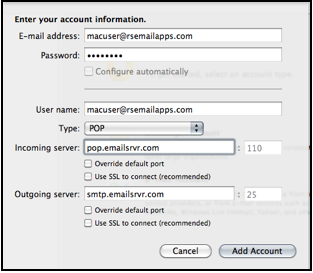
- User Name” Enter your entire email address (e.g., myname@mydomain.co.za).
- Type ”Select POP from the drop-down menu.
- Incoming mail server ”Enter the pop server name: mail.yourdomain.co.za (replace yourdomain.co.za with your own domain name ie mail.yourdomain.co.za)
- The pop port should be port 110/995 (SSL/TLS).
- Outgoing mail server (SMTP) Enter the smtp server name: mail.yourdomain.co.za (replace yourdomain.co.za with your own domain name ie mail.yourdomain.co.za)
- The smtp port should be port 25, however if you make use of Mweb, Iburst, Cell-C, or an ISP that uses smtp redirection to prevent spammers, you then need to change the port to "587/465' and then click the "overide default port" checkbox.
- The Use SSL to connect box should be unchecked.
- Click the "more settings button" and In the Authentication drop down box, click to select Use Incoming Server Info.
. - Click Add Account and Confirm changes and close.
Note: A POP connection removes the email messages from the server during download. If you would like to leave copies on the server, click Advanced and check the Leave a copy of messages on server check box. Click OK.
Ensure that the use smtp authentication is also checked in the advanced tab.


